
IPTV on iPhone and iPad: choose and set up a player
On iPhone or iPad, you need a player that fits your own source. The important factors are the access method, the controls and the features available on your specific device. A good rating alone says little about whether your M3U link, Xtream access or desired offline feature is supported.
This guide takes you from choosing an app to playing your first item. It distinguishes iPhone and iPad from Apple TV and explains, using TELOS as an example, the requirements for profiles and downloads. A player does not include a channel package or provider subscription; you supply the content and the right to access it.
Players compared
| Player | Price | Platforms | Rating | Users praise |
|---|---|---|---|---|
 Smarters Player Lite Smarters Player Lite |
Free | App Store | Usability praisedStability praised | |
 ibo Pro Player ibo Pro Player |
Free | App Store | Support praisedStability praised | |
 Smarters Pro Smarters Pro |
Free | App Store | Usability praisedValue for money praised | |
 IPTV Smart Player⁺ IPTV Smart Player⁺ |
Free | App StoreGoogle Play | Stability praisedSupport praised |
Pros and cons
- Before installing: compare your source with the required iOS or iPadOS version.
- For travel: plan to download only when the app, source and specific title support it.
- For your TV: check a native tvOS app and AirPlay separately.
- When comparing: read the current offer for trial terms, purchases and additional playlists.
Top 3 recommendations
The app listings below are options to compare, not a ranking based on a new device test. Check with each provider whether your access format, Apple device and required features are currently supported. Similar names may refer to different apps or publishers.
TELOS is our own player. We identify the product description explicitly and distinguish documented features from general selection criteria.
How to set it up
- Open the official store listing and check the publisher, device compatibility and purchase terms.
- Choose the access method your provider actually offers: Xtream or a supported M3U link.
- Enter the complete details in the correct fields. Do not publish links or screenshots that show login details.
- Let the playlist load and test an item you are entitled to watch.
- Then check the programme guide, favorites and any downloads one at a time.
Frequently asked questions
Can I use an M3U link in TELOS on iPhone?
Can I watch movies offline on my iPhone?
Is a movie on my watchlist already downloaded?
Does AirPlay work with every IPTV stream?
Do five profiles mean five simultaneous streams?
Does TELOS include channels or an IPTV subscription?
Which Apple operating systems are supported?
Why does the channel play while the programme guide is empty?
Tips & legal M3U sources
If playback stutters, change one condition at a time: open a different item, test closer to the router, or compare Wi-Fi with mobile data. No particular Wi-Fi band guarantees better quality in every situation. On Apple TV, Ethernet depends on the specific model; having a port or an adapter does not by itself fix a source problem.
Updated: Oct 25, 2026
Quick answer: which player fits iPhone and iPad?
Choose based on your source first, then on the features you actually use. With Xtream access, you usually need a server address, username and password. With an M3U source, you use a playlist link or file; the app determines which option it supports. Approval for iPhone also says nothing by itself about whether there is a native Apple TV version.
A useful test is more specific than a general “best of” list: can you connect your access? Does an item you are allowed to watch start? Can you find favorites, programme data and the audio tracks you need? Only then is it useful to look at extra features such as profiles or offline playback. The player comparison can help you compare criteria; always check installation with your own device and source.
Keep the app, provider and TELOS account separate
The player is the app. Your provider supplies the source, the content you can reach and, where available, programme data. An additional app account may provide its own management features, but it does not replace content access. Do not confuse signing in to the player with signing in to your provider.
TELOS does not include channels, movies, series or provider subscriptions. Saying that an app supports live TV or series describes a playback feature; it does not mean the app includes a content package. Check that you are entitled to use your source, and watch only content you are allowed to access. A free playlist in an app is also different from a free channel package.
Before downloading: check these details
| Your question | What to check |
|---|---|
| Will the app work on my device? | The current store listing’s iOS or iPadOS requirement, not just the product name. |
| Will my source work? | Xtream, an M3U link and file import are separate methods; the app must support the one you need. |
| Can I use a programme guide? | Support in your app version and suitable programme data from your source. |
| Can I watch without internet while travelling? | Downloads for the specific platform and suitable content; live TV is a different use case. |
| What does playback cost? | The trial, later purchases, additional playlists and any renewal in the current offer. |
| What do I need for a TV? | A suitable native TV app or an explicitly supported AirPlay path. |
The official TELOS App Store listing checked for this guide lists iPhone and iPad from iOS or iPadOS 16.4, and Apple TV from tvOS 17. Check these details again before installing. App availability and purchase offers may depend on region and version. Device names or old comparison tables are no substitute for checking the current listing.
Set up Xtream or M3U on iPhone
TELOS supports both Xtream access and M3U links on iPhone and iPad. An M3U link is not by itself proof that file import is supported, and it does not automatically provide every feature available with an Xtream source.
- Confirm the access method: use the method specified by your provider. Do not enter an M3U link as the server address for an Xtream login.
- Have the complete details ready: for Xtream, use the server address and login details; for M3U, use the complete playlist link. Watch for spaces or missing characters.
- Add the source: choose the matching method in the introduction and follow the fields in the current app. Do not rely on menu screenshots from an older version.
- Wait for it to load: large playlists can take time. Adding the same source repeatedly will not necessarily make an interrupted import more reliable.
- Test one item: start an entry you are allowed to watch. Try a second if only the first one fails.
- Organize afterward: choose your profile, save favorites and check additional features separately.
A complete playlist address may contain login details. Do not post it in forums or enter it into arbitrary online checking services. The M3U validator checks a playlist’s structure; a positive result proves neither that streams are reachable nor that you are entitled to use them.
TELOS on iPhone and iPad: your own selection, not a channel package
TELOS is our own player. On Apple mobile devices, it connects your source with personal sections such as favorites, watchlist and Continue Watching. Up to five profiles are available per Xtream account. The number of profiles does not tell you how many streams your provider allows at the same time.
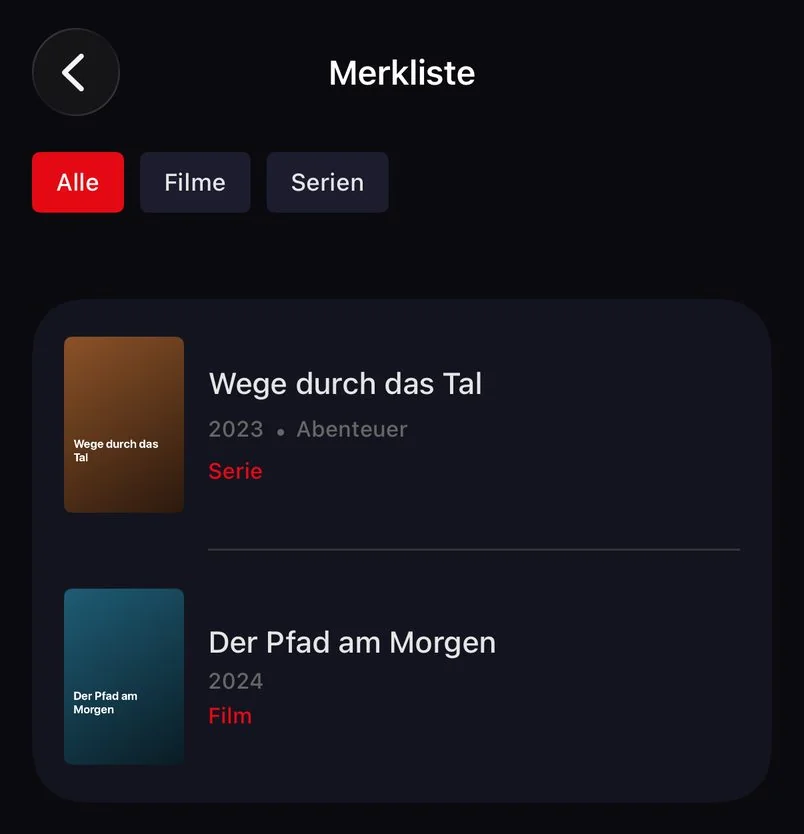
Personal recommendations in the “For You” row are based on activity analyzed locally on the device. This is separate from optional account sign-in and its management features. This guide does not promise that all settings sync or that downloads transfer between devices. The TELOS profile overview (DE) explains personal sections and child profiles.
Download movies and episodes before a trip
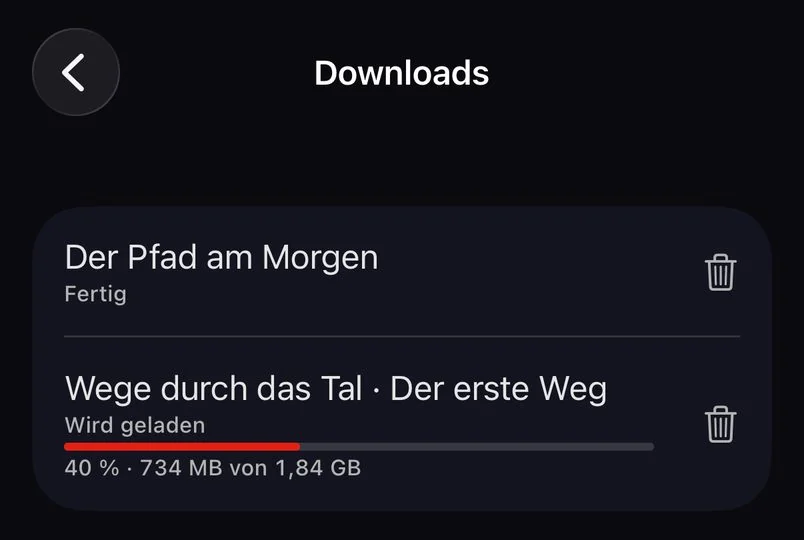
The mobile TELOS app offers downloads for suitable movies and series episodes. You need an Xtream source, with the provider proxy turned off. M3U sources are not a basis for promising downloads. Whether a particular title is available depends on your source; PIN and child-profile rules still apply.
Start a download from the movie or episode details page and check completion under “My TELOS”. By default, downloads use Wi-Fi only; you can enable mobile data downloads. Check free storage and your data allowance first. A watchlist saves your selection, not the movie itself.
- Open the profile you plan to use for viewing later.
- Download a suitable title over a reliable connection and wait for it to finish.
- Check that it appears as a completed download.
- Test playback offline before relying on it while travelling.
Live TV still depends on an active connection. A saved episode is not a download on your second device. For exact requirements and help with missing titles, see the TELOS download guide (DE). Plan your trip around files you have actually checked, not an untested assumption about a feature.
Check the programme guide separately from playback
For M3U, TELOS supports a programme guide with an XMLTV source on iPhone and iPad. The app uses the XMLTV address saved with the source or the playlist’s url-tvg reference. If suitable data is missing or cannot be retrieved, the guide may remain empty even though the playlist is still usable. M3U catch-up is not supported.
A channel playing does not prove that suitable programme data is available. In your installed app version, check which EPG source is intended for the access method you selected. An M3U playlist and an XMLTV source serve different purposes: the first describes the entries, while the second provides programme information.
If the guide is empty, first check the data source, retrieval and channel mapping. Shifted times are a different symptom from missing data altogether. Do not change the source, time zone and playlist at the same time, or you will not know what fixed the issue. The guide to a missing EPG walks through these checks. A feature listed in a store description does not guarantee complete data from every provider.
When IPTV buffers on iPhone
Start with a comparison that can narrow down the cause. If only one item stutters, that entry’s source may be affected. If several items stutter only in one location, check the connection there. If the same access fails on multiple devices at once, also check your provider’s limit and the status of your access.
| What you notice | A useful next step |
|---|---|
| Only one entry stops | Test a second item and ask your provider to check the affected source. |
| The problem happens only on Wi-Fi | Test closer to the router and compare with another permitted network. |
| Playback stops after a network change | Restart playback after switching between Wi-Fi and mobile data. |
| A second session triggers the error | Stop other playback and check the connection limit with your provider. |
| The error occurs only after switching apps | Test with the app open and check whether background playback is supported. |
Note the device, operating system, app version and what happens with a second item. This is more useful than “it doesn’t work”. Restarting a router may help with a local problem, but it does not check the source. More steps are in the buffering guide. Change one condition at a time and then test the same item again.
Tell AirPlay apart from a native Apple TV app
A native app runs directly on Apple TV. With AirPlay, you start on iPhone or iPad and choose a compatible receiver. The current TELOS store listing describes AirPlay for streams played by the system player. It does not promise AirPlay for every stream or playback path.
For normal AirPlay use, Apple recommends compatible devices on the same Wi-Fi network. If the receiver does not appear, check connectivity, software versions and AirPlay settings, and restart the devices involved if needed. Then test a known playback. A successful AirPlay test is not a native Apple TV test and does not prove that your source works on every combination.
For longer viewing sessions, a native app may be the more suitable way to use a TV. Check compatibility and setup on the Apple TV itself. Downloads and profiles are not automatically carried over from a mobile device; tvOS also has its own storage rules. The TELOS Apple TV page explains this device option.
Install from the official source and read the purchase terms
The documented source for TELOS in this guide is the official App Store listing. It would be too broad to say iPhone apps can only ever come from the App Store: Apple also documents regional alternatives. That does not establish an alternative installation route for TELOS. You do not need a third-party certificate or a purported iPhone APK for this guide.
Check the current trial and purchase terms in the offer itself. For TELOS, one playlist is free, additional playlists require Premium, and playback requires a purchase after the trial period. These app terms are separate from your own provider access. A claim such as “free to download” does not tell you which later use requires payment.
Example: prepare a shared iPad for a trip
You want to take two episodes on the family iPad and continue watching later at home on the TV. First check the source on the iPad and choose the profile you will use on the trip. Download both episodes there, check the available storage and start each briefly offline. This tests the actual viewing path, rather than only confirming that the titles appear in the catalogue.
Then set up the TV as a separate device. The same provider login does not transfer a saved video file. If a stream is already playing on the iPhone, the provider’s connection limit may also matter. For troubleshooting, stop other playback before adding a source again. This keeps three separate questions clear: Is the content available, is it stored locally, and is the requested connection allowed?
How to describe an issue clearly
Include the device, app version, access type and the exact step where the problem occurs. Add whether a second source or item works and whether the issue is the same on Wi-Fi and mobile data. For a missing download, the source, profile, free storage and provider proxy matter more than the entire channel list.
Do not share passwords, complete M3U addresses or unredacted account screens. A screenshot of an error helps only if no login details are visible. For a sign-in issue, use the TELOS login guide; for general device questions, see the player hub. A clearly defined issue avoids repeating setup and helps prevent unnecessary changes to parts that already work.
Sources and reproducible checks
Store ratings describe feedback from store users. The review texts we classify are a separate sample; their number is not the denominator of the rating. Neither dataset is our own device test.
- Store export generated
- Latest dated store observation in this export
- 2026-10-25
- Curated feature matrix source date
- 2026-07-23
These dates refer to different sources. A new export does not recheck the curated features. Older feature, price and availability statements need a fresh check in the official listing for your device and country.
Store screenshots are supplied by the app publishers, not captured in our own tests. Store presence alone does not establish support for every TV model, input format or playback setup. TELOS belongs to this website operator; its availability must also be checked for the exact platform.
Check one variable at a time: validate a nonprivate playlist sample, measure on the actual playback device, then compare the official device and input requirements. Record device, app version, date and the result before changing another setting.