Short answer: Check the app before you buy the stick
A high-resolution Fire TV does not guarantee that your current IPTV player will run on it. What matters is the exact device model, its operating system, and an app available for that platform. Vega OS and Fire OS are different platforms. An Android APK is therefore not a universal installation method for every Fire TV. Amazon documents the systems and devices separately in its Fire TV developer overview.
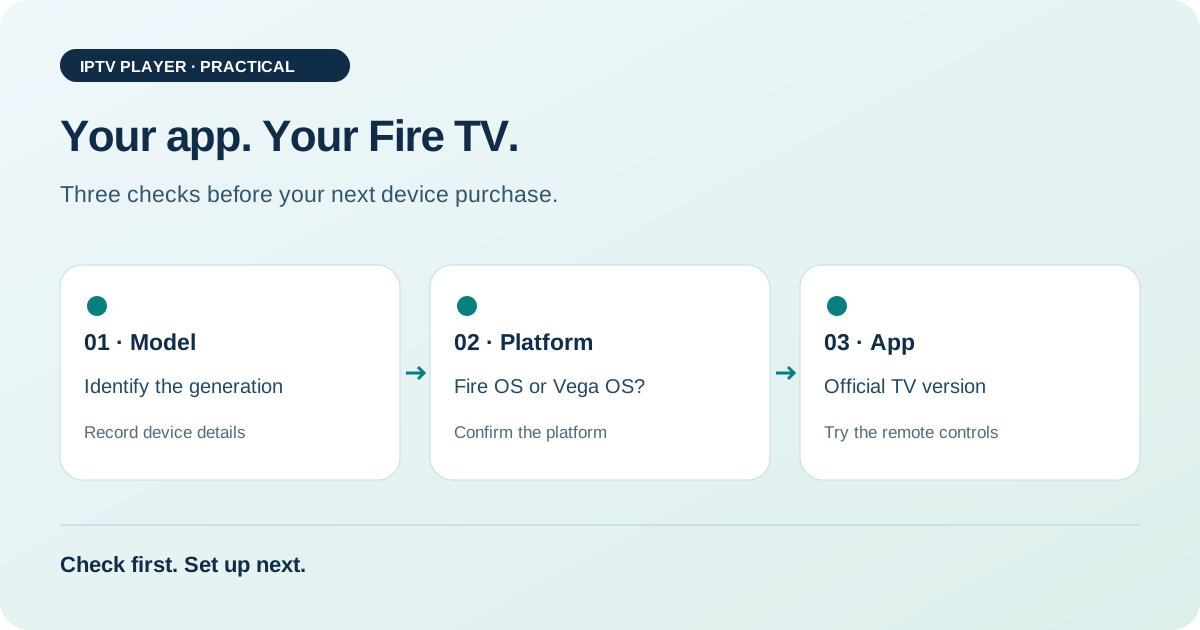
The sensible order is to identify the model, match it to its operating system, check official app availability, and only then plan setup or a purchase. The steps below are an editorial checklist. They do not claim that we tested a particular app on a device. They can help you avoid a common mistake: buying a capable TV streamer only to discover that it does not offer the player you want.
1. Identify your Fire TV precisely
Note the full model name and the software version shown in the device information. Menu labels can vary by interface. “Fire TV Stick 4K” alone is not enough to identify a device reliably; the suffixes and generation matter. If you are planning a purchase, use the model information on the official product page. A similar-looking photo is not reliable proof.
Make a short note with three fields: model, operating system, and the app you want. Add your Amazon account region if you will search for the app in the store. These details can also help the app’s support team. A report with the exact model is more useful than “IPTV won’t work on my Fire Stick.” You do not need to share serial numbers or account details publicly.
2. Tell Fire OS and Vega OS apart
Fire OS is based on Android, but that does not guarantee that every Android app is suitable. A phone app may be awkward on a TV or expect inputs your remote does not provide. Vega OS uses a different platform approach. When choosing a device, check whether a version is actually offered for Vega instead of treating an APK as a universal solution.
| Check | Fire OS | Vega OS |
|---|---|---|
| App availability | Check the official store for the exact device | Check explicitly for Vega or the exact device |
| Android APK | Does not guarantee TV compatibility | Is not a substitute for a compatible Vega app |
| Remote control | Test focus, Back, and text entry | Test the same controls in the available app |
A blanket “works on Fire TV” list skips these differences. Use Amazon’s current device specifications and the app publisher’s information to identify the platform.
3. Find the app in the right store
Start by searching directly on the device you plan to use. Then check the developer name and the official link on the app publisher’s website. Similar names and copied logos do not prove that two listings offer the same software. Finding an app in a phone store also does not confirm that a TV version is available. This matters especially if you already use a premium licence or a particular billing plan.
If you cannot find the app, note the result and check the publisher’s official device list. A missing store listing alone does not tell you whether the cause is the operating system, region, or a withdrawn app. Ask support a specific question: “Does your current TV app support this model and operating system in my country?” A clear statement from the publisher is more useful than a download promise from an APK portal.
4. Check your playlist and login separately
Installing an app does not automatically give you access to channels. Separately check which setup method your existing service provides and which methods the player accepts. An M3U address, an XMLTV programme guide, and login details for a provider interface serve different purposes. Do not enter credentials on an unfamiliar website just because it offers a TV setup guide.
For the test, use only the details provided by your own service. Start with one channel, then check the programme guide. If the playlist loads but programme names do not appear, that is a different issue from an app that cannot be installed. Our M3U and EPG guide explains the distinction. It can help you avoid blaming the operating system for an input mistake.
5. Try it from the sofa before making a long-term decision
Test the controls from your usual seat. Can you reach the channel list with the arrow keys? Does the highlighted row stay visible? Can you press Back to return from a menu to the picture? Can you save a favourite and start it again without searching? In daily use, these questions can matter more than a long feature list on a product page.
Also check whether you remain signed in after restarting the app and whether long channel names are readable. If the app uses an on-screen keyboard, try the required input yourself. A working video alone does not prove that the app is comfortable to use on a TV. If there is a trial version, distinguish the steps you have tested from features that might require a purchase. Do not describe an untested recording feature as definitely available.
6. If your preferred app is missing: three options
First, use your TV service’s official app if it offers one for your device. That may remove the need for a separate player. Second, choose another player whose publisher supports the exact Fire TV and the setup method you already use. Third, use a different streaming device that explicitly offers your preferred app.
Compare the full implications: setup again, remote control, a possible app licence, and perhaps an extra power adapter. An alternative only makes sense if it meets your actual needs. You do not have to buy a new device if your existing setup already works well. Our IPTV device class comparison covers selection criteria; check app availability again before ordering.
7. Separate app issues from connection problems
A speed test cannot explain why an app is missing from a platform or will not launch. If the app opens and only the video stutters, then it makes sense to investigate the connection. Test on the playback device where possible, rather than only on a phone next to the router. Change one thing per test so you can understand the result.
Note whether one channel or several are affected and whether other official streaming apps work on the same device. That gives you a useful starting point. Our IPTV buffering troubleshooter continues this second diagnostic path. It does not replace a compatibility check, but can help you improve a setup that already works.
Frequently asked questions about Vega OS and IPTV
Can I move a Fire OS app straight to Vega?
Only rely on that if the publisher confirms a version for Vega or your exact device. The same app name or an APK you used before is not enough proof. Also check whether your existing licence applies to the offered version.
Is an app outside the store automatically a better solution?
No. A different download route does not fix a platform mismatch. It can also raise questions about the app’s source and updates. Use an official publisher source and the installation method intended for your device instead of turning off protections without a clear reason.
Can the app use my existing channels?
That depends on the login and playlist formats the app supports and on your service. Check these separately from installation. An app that opens does not automatically have access to your existing TV service.
What details should I include in a support request?
Start with the model, software version, app name and version, and a clear description of the step that failed. Describe what you see. Do not post passwords, playlist URLs containing tokens, or personal account details publicly.
Your next step
Sources and review date
Sources checked on 25 October 2026. Editorial guidance; no original device measurements.